
How to Recover Data from Formatted, Corupted, and Deleted Partitions? Download Partition Recovery Software Now..!
Worried on how to recover data from a partition after it is been corrupted, formatted, and deleted? Then, don't worry! Just Download the free version of Partition Recovery Software and get back all your files from a corrupted/formatted/deleted partition in three easy steps. Download and try now for free..!
 |
 |
Recover Partition Software
Scan
Select
Recover

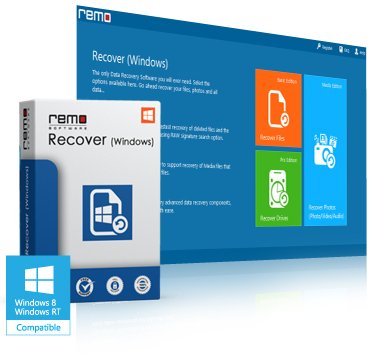
Recover Missing Partition on Windows
Benefits:
- Effortlessly recovers files from quick formatted partition, lost, corrupted, and deleted partitions on a hard drive, memory card, pen drive, USB flash drive, and other mass storage devices
- Supports partition recovery formatted with NTFS, FAT, exFAT, HFS, and HFSX file systems
- Available in Windows & Mac editions that is compatible with the latest Windows 10, macOS High Sierra, and their earlier versions too
- Download this Partition Recovery Software for free, and preview the recovered files from deleted/lost/corrupted/formatted partition for free prior to activating it's complete version


| System Requirements: |
|
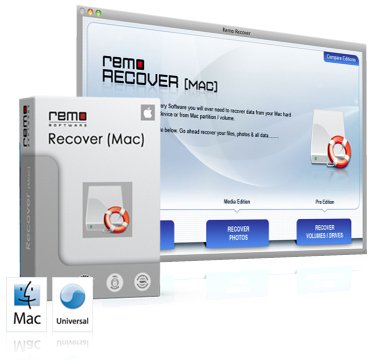
Mac Partition Recovery Software
Benefits:
- Recovers lost / deleted partitions on both Intel and PowerPC MacBooks
- Simple wizard interface makes partition recovery process effortless
- Facilitates to recover data from FAT and HFS+/HFSX formatted volumes
- Data recovery even after Apple Partition Map corruption
- Get back lost partition data from Mac OS X Lion, Leopard, Snow Leopard, Mavericks, Yosemite, El Capitan, Sierra and later
- Recovers accidentally deleted or formatted partitions in a few clicks
| System Requirements: |
|
Quickly recover your files from lost, deleted, corrupted, and formatted partitions:
Losing a partition on your computer hard drive, external hard drive or an USB drive can be a distressing experience, especially if it contains important files and data. Whether it's due to accidental deletion, disk formatting, malware attacks, or file system errors, the good news is that there is a solution: Partition Recovery Software. Here, we will explore the significance of partition recovery software, and how it can help you retrieve your lost/deleted partitions and regain access to your valuable data.
Understand what happens during a partition loss:
Before delving into the world of partition recovery software, it's important to understand what partition loss entails. A partition is a logically separated section on a hard drive that is allocated for storing data. Partition loss occurs when the partition becomes inaccessible or is accidentally deleted, leading to potential data loss. This can happen due to various reasons, such as human error, software or hardware failures, or malicious activities.
The Role of Partition Recovery Software:
Partition Recovery Software is specifically designed to scan your storage devices, identify lost or deleted partitions, and recover them, along with the data they contain. These software tools utilize advanced algorithms to search for remnants of lost partitions and rebuild the partition table or directory structure, enabling you to regain access to your files.
Before we dive into regaining lost/deleted partitions, let's have a look at few common scenarios leading to loss of a partition:
File System Corruption: File system defines how the files can be accessed and it also stores the entries of the file location. So it manages the storage of all the files on the system. If the file system of a partition gets corrupted then you will lose access to all the files stored on that partition. The file system of a partition may get corrupted due to an interruption in changing of a file system of partition.
Accidentally formatting partition: Sometimes if you want to free some disk space then you go for formatting the partitions containing unwanted data. However, it may happen that you may format a partition containing some of the important files. Later on, after formatting the partition, you realize that you have lost your important files.
Partitioning/re-partitioning errors: When you go for partitioning/re-partitioning the hard disk, there are some errors which may get generated like "boot sector copy has not been found", "an error occurred when updating bitmap", "error reading disk number into MBR", etc. This may lead to incomplete partitioning, which results in inaccessibility to the partitions & loss of data from the partition.
Power failure: You may access partition by the third-party utility to perform a resize operation. Again you might also go with using a disk error checker program to check errors on partitions. A sudden system shut down due to a power failure at this point, can lead damages to the partition data.
Partition Recovery Software to Recover Deleted/corrupted/formatted partition data:
Partition Recovery Software comes handy in recovering files lost after a partition is corrupted, formatted, and deleted. Untill and unless the memory space on the drive that was occupied by the files got deleted from a partition is not overwritten with new files, those files are recoverable easily with this software. So, as soon as the partition is formatted, corrupted, and deleted, immediately stop using the drive to avoid overwriting of the files. Then, immediately download this Partition Recovery Tool to restore files from a deleted, formatted, or a corrupted partition.
Key features of partition recovery software:
- Supports deleted, and lost partition recovery from Seagate hard drive, Toshiba, Transcend, Western Digital, LaCie, Buffalo, Maxtor, Hitachi, Samsung, and other popular branded hard drives.
- This tool will help you to get back files from partitions lost due to any of the above-mentioned reasons. It provides you the best experience to get back lost files not only from partitions but also external drives like memory cards, USB drives, external hard drives, etc.
- Can be utilized to get back lost data from the partition containing Windows files after re-installing of Windows OS. You can even retrieve data from lost NTFS partition, FAT32, FAT16, HFS, and HFSX formatted partitions on Windows & Mac, as the tool comes in Windows and Mac versions separately.
- You can also use this tool to get back lost data from the partition containing Windows files after re-installation of Windows OS.
- One can bring back data from formatted volumes on Mac systems. It supports to regain data from volumes on all Mac OS X 10.5 & higher versions of Mac OS OSX (Leopard, Snow Leopard, Lion, Mountain Lion, Mavericks, Yosemite, El Capitan, and Sierra).
- Apart from recovering partitions, the software will recover data from crashed hard drive, non-bootable hard disks and also unerase partitions from laptop hard drive with ease
- This software is enabled with new advanced data recovery features to make it strongly effective in theretrieval of inaccessible, lost or missing hard drive partitions.
Steps to Recover Partition Using Partition Recovery Software:
Step 1: Download and install the free version of Partition Recovery tool on your PC. After successful installation, launch the software. In the Main Screen, Select the partition from which you want to recover data, and click on the Scan button.
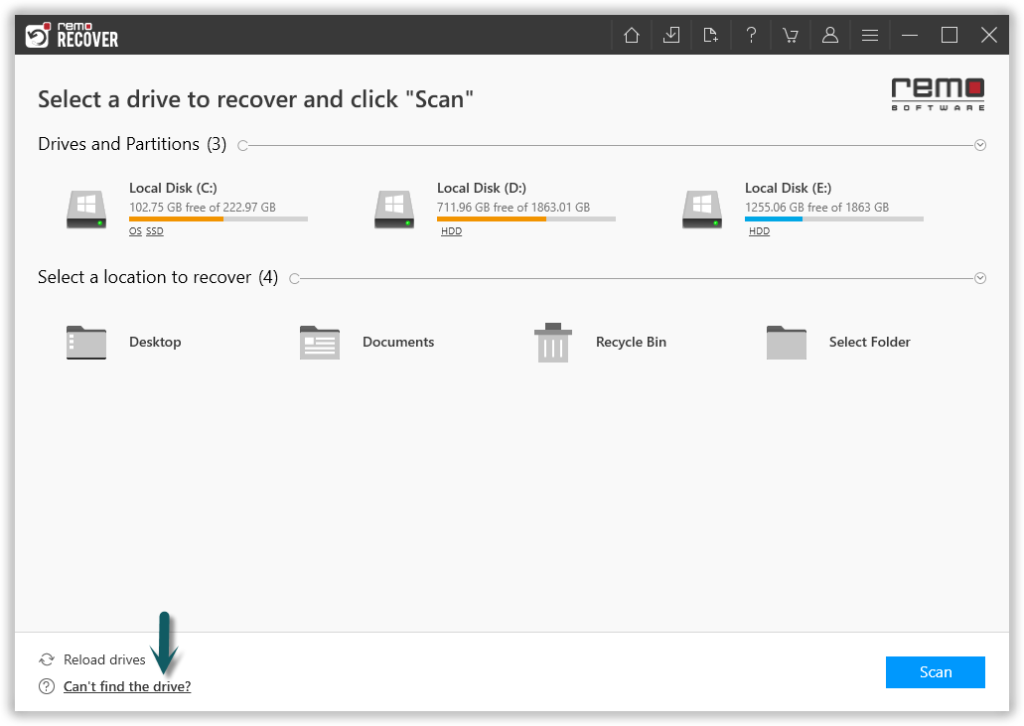
Image 1 - Launch Pad
Step 2: Once the scan starts you can click on the Dynamic Recovery View to recover the lost file during the scanning process itself.
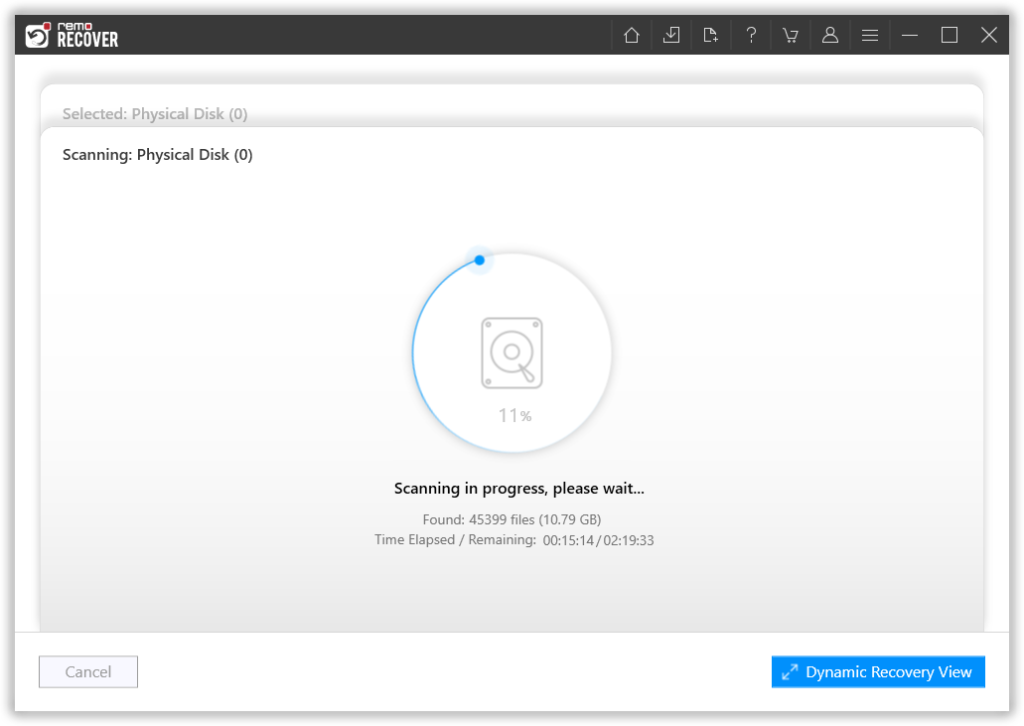
Image 2: Dynamic Recovery View
Step 3: After the scanning process, you can see your lost data under the Lost Partition folder.
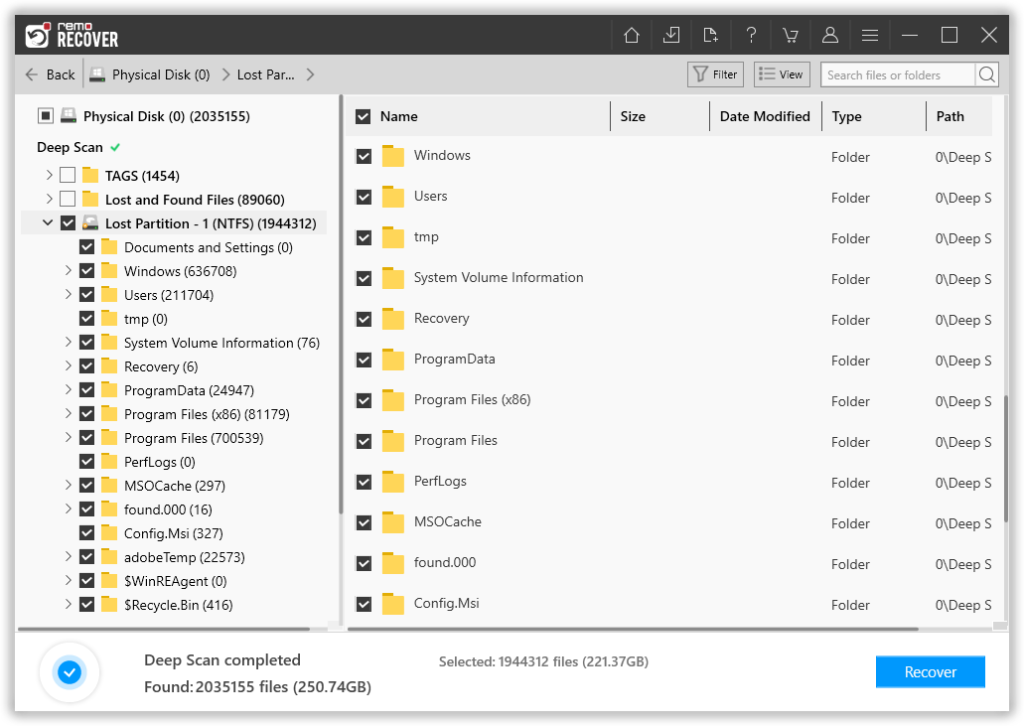
Image 3 - View Recovered Lost Data
Step 4: You can double-click on any file to Preview the recovered files such as documents, PPTs, excel sheets, photos, videos, etc.

Image 4 - Preview Recovered Files
Step 5: If you are satisfied with the recovery results, select the files which you want to restore and hit the Recover button to save them at your desired location.
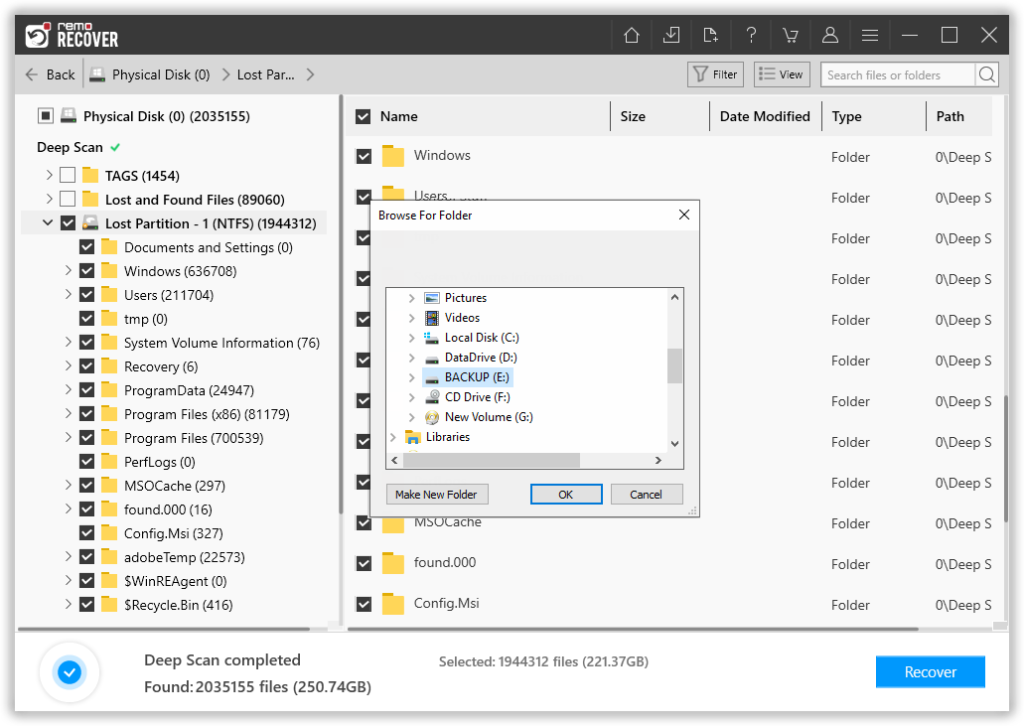
Image 5 - Save Recovered Data
Rescue Files from Deleted Partition
For safe, secure and fast regain of data from FAT16, FAT32, NTFS, NTFS 5, HFS+ and HFSX deleted partition you need to employ this advanced algorithm. Make use of this trusted tool to redeem data from the deleted partition from Windows and Mac OS with ease.
Useful tips to avoid data loss on a hard drive partition:
- Use a reliable antivirus program to check for viruses so that partitions may not get corrupted due to virus infection & ensure to keep all antivirus definitions up to date
- Make use of a UPS power backup battery to avoid problems of power failure
- Do not use unreliable third-party programs for resizing the partitions
- Lost data is not immediately removed from the memory & can be obtained back until it has not got overwritten. So take use of this utility immediately when you find that you have lost data from partition before it gets overwritten
Recent Updates:
How to Recover Data from Encrypted Hard Drive on Windows 10?: Do you want to know how to recover data from the encrypted hard drive on Windows 10? If yes, then take the help of this easy to use Recover Partition app and easily get back data from the encrypted drive on Windows 10.
Data Recovery from Unbootable Hard Drive: Has your computer hard drive is corrupted severely and your system failed to boot it? Then, do not worry, just go through the below link and get to know how to recover data from an unbootable hard drive. Recover Partition software can extract all your files from unbootable hard drive with few simple mouse clicks.
Recover Data from USB Partitions: USB drives comes very handy as they are portable and can be carried anywhere with us. Just connect the USB drive to your laptop or desktop and all the information stored on your USB drive can be accessed with ease. If you happen to lose data from one of your USB drives or partitions, then you can use USB partition recovery software, which helps you in recovering your data in an easy way.
